May 2025
As more historical scholarship—manuscripts, journal articles, and books—moves from paper to PDF, historians need to read that format as actively as they did when they were marking up paper with pencil or pen. Such a method allows historians to create a compact file blending key passages with their own thoughts, to be consulted during seminars or future research. Moreover, the very act of taking notes aids in comprehension and recall, even if the reader never against consults the notes.
Here I offer my method, which requires an iPad with an Apple Pencil, PDF Expert on a laptop or desktop as well as the iPad, and the ability to run a Python script.
For this illustration, I am using Mario Peters, “Contesting US Hegemony: Pan-American Infrastructure and South American Visions of Global Transportation, 1880s–1890s,” Journal of Global History 20, no. 1 (March 2025): 21–42, https://doi.org/10.1017/S1740022824000135. This fine article both speaks to my interest in the politics of infrastructure and is distributed under a Creative Commons CC BY license, which allows me to reproduce portions of it here.
Step 1. Save the PDF to a synced folder and open on iPad
Typically, I find articles while working on my MacBook, then save the PDF to a folder that is automatically synced via iCloud to both the MacBook and the iPad. That allows me to mark up the article on the iPad (step 2) and then open the marked-up version on the laptop (for steps 3 and 4).
I am now using a new iPad, but for years I used this method with a 7th Gen with 32GB storage, which as of May 2025 are selling used for about $110. An Apple Pencil will cost another $100 or so, which is to say that for the price of maybe five or six university-press books, you can get the necessary hardware. PDF Expert will be an additional expense, but it is available at half price for students and educators.

Step 2a. Highlight key passages

PDF Expert’s highlight function turns my Apple Pencil into a highlighter, allowing me to mark key passages. Mostly I use orange, but I switch to blue for main arguments. In this case, the author, Dr. Peters, has helpfully followed the thesis-statement template, weighing two alternative explanations and explaining why one is more complete.
Although new intercontinental steamship connections and the inter-American railroad were closely connected to the hegemonic aspirations of the United States, South Americans played an active role in the planning of these infrastructures, integrating the pan-American framework into a broader global vision of transportation.
Moreover, he has placed his thesis statement at the end of the introduction, which is exactly where I like to see it.
Step 2b. Write Notes with Apple Scribble or dictate them with Dictation
Highlighting is fast and easy, but it confines you to saving the author’s exact words. Sometimes you may want to summarize a long passage in your own words, or react to the text with your own ideas, critiques, or questions.
If you were reading on paper that you owned (not a library book!) you could take such notes in the margin or on fly pages at the back of a book. On an iPad, I find it hard to write small and neatly enough, and handwritten notes don’t export easily. Instead, I use PDF Expert’s “Note” function. Using the Pencil, I tap the note icon, then tap in the margin of the text. A colored note area appears on top of the text.
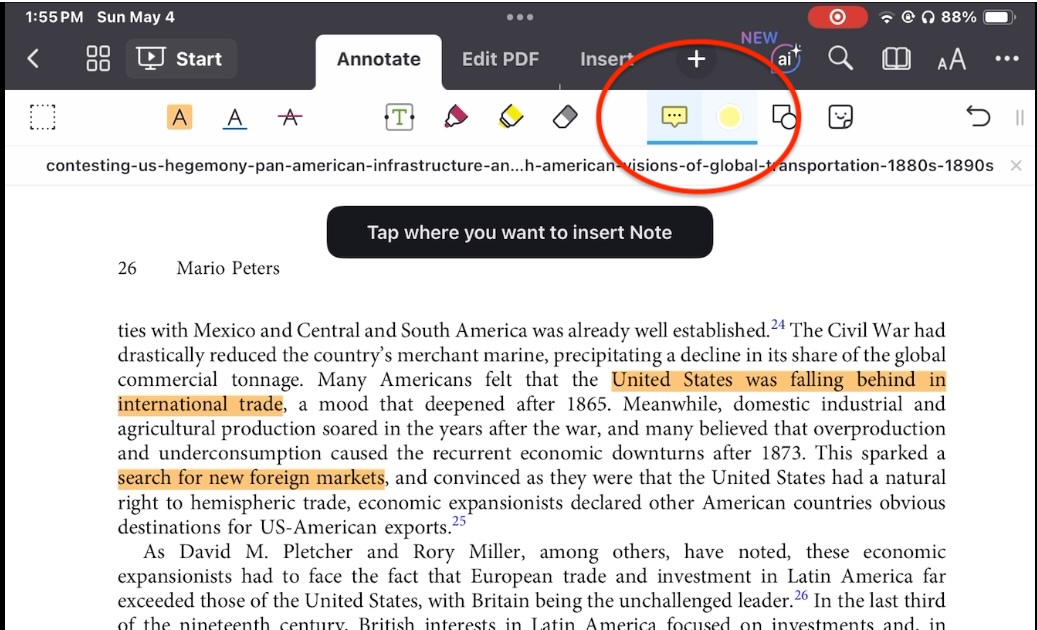
I have Apple’s “Scribble” feature activated on the iPad, which means I can handwrite in the colored box and, as I write, the iPad will convert my handwriting to type.
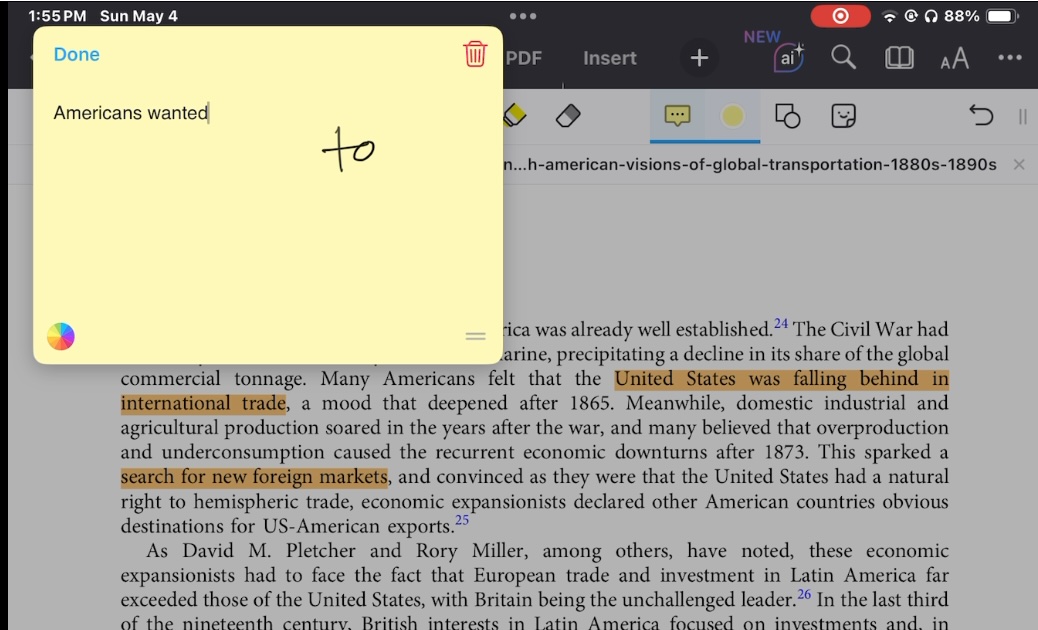
As of May 2025, Scribble is impressive, but still has a fairly high error rate. I often need to correct a word. In this case, Americans did not want to “carpet” with Britain; they wanted to “compete.”
To make a correction, I open the onscreen keyboard on the iPad. Typing the first few letters pulls up predictive text suggestions, which speeds the process.
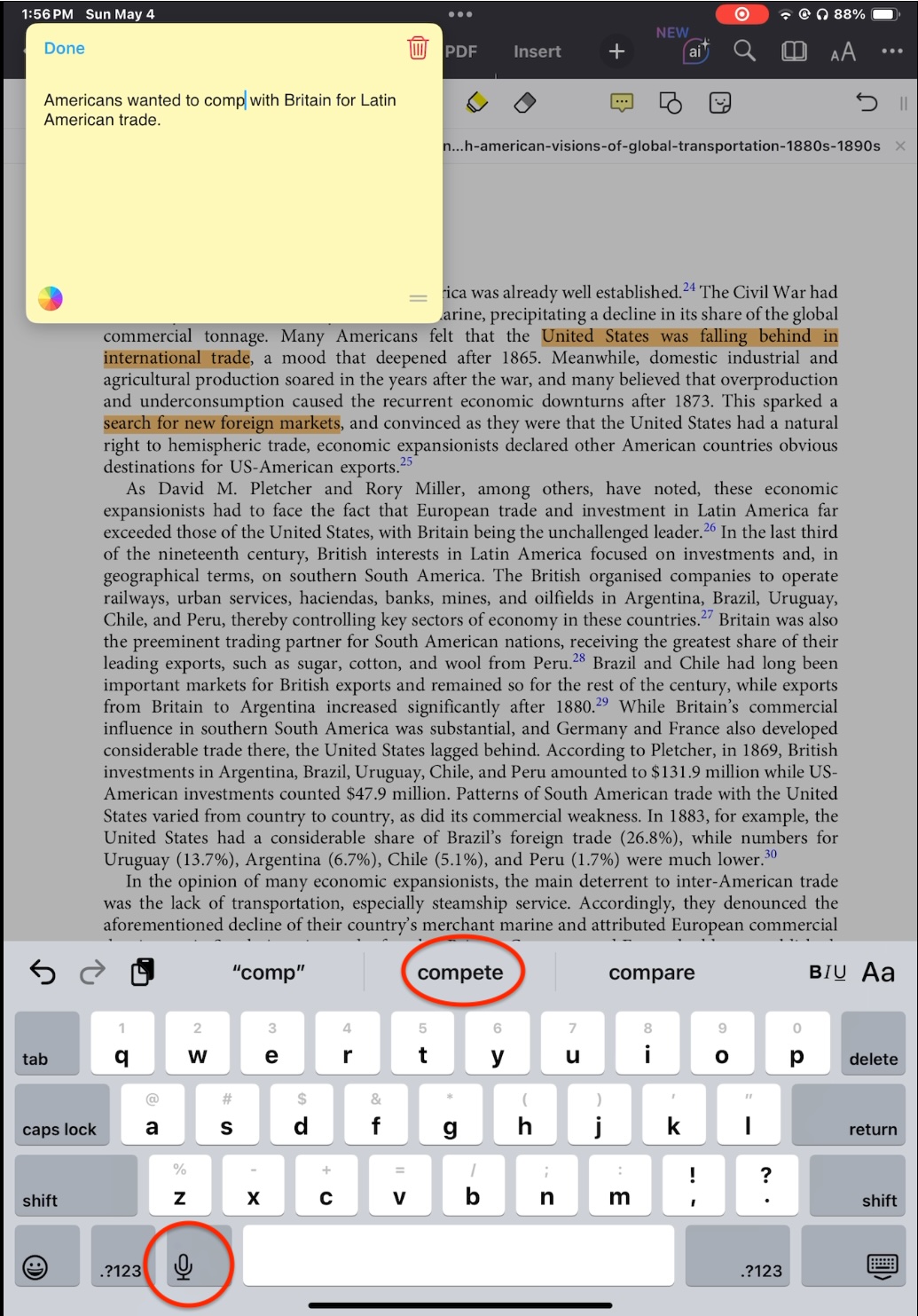
If I am alone while marking up a PDF, I will often use the Dictation button to dictate, rather than handwrite a note. I find this to be more accurate.
Step 3. Export Annotations
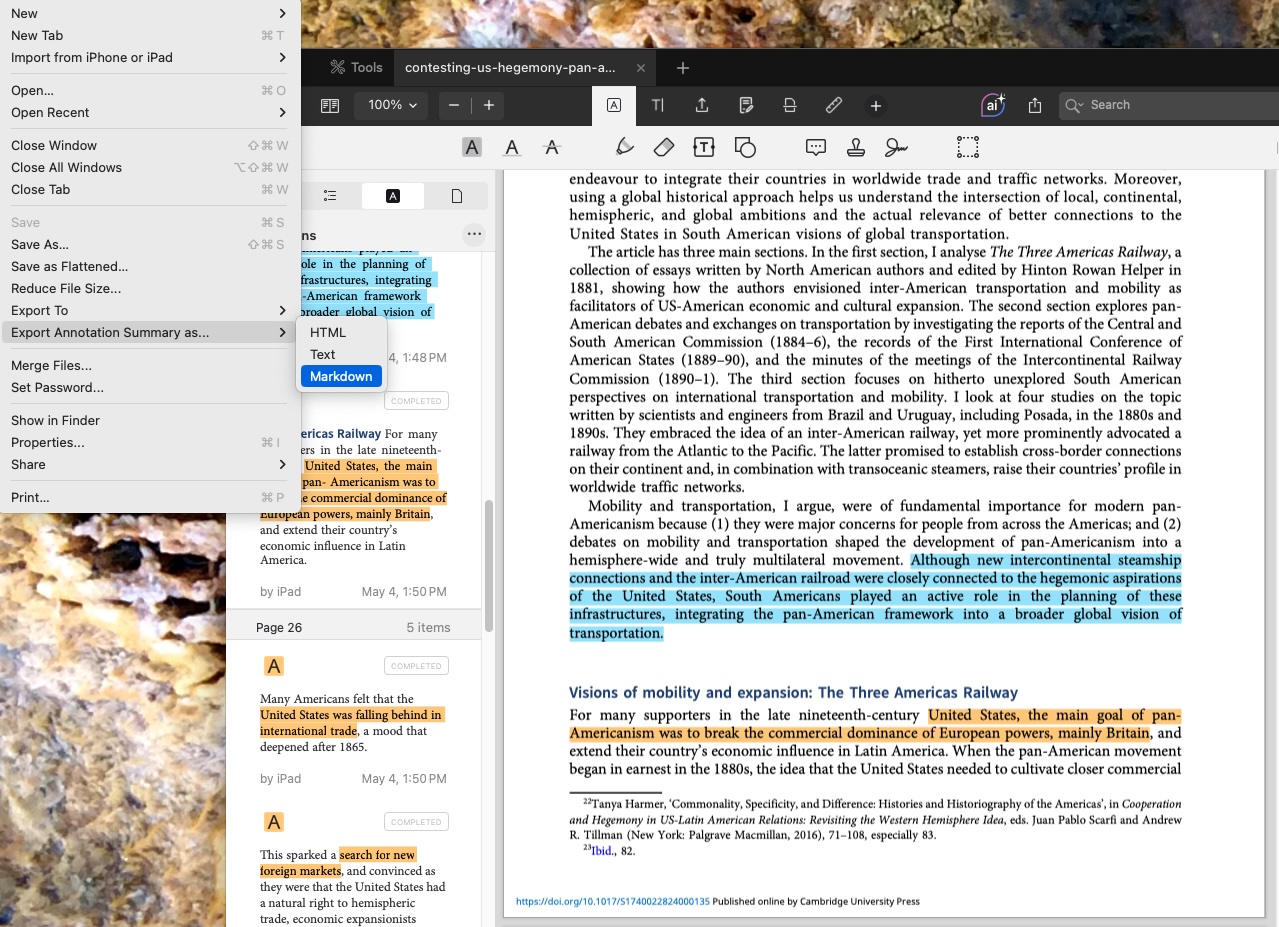
Back on my laptop, I open up the file, and can see all of my annotations listed in a sidebar. I then use the command “Export Annotation Summary as . . . ” to create a Markdown file with my highlights and notes.
Here’s what a PDF Expert Markdown file looks like.
A few things to note about PDF Expert’s Markdown export. First, it automatically exported the section titles (e.g., “Pan-American debates and exchanges on mobility and transportation”) without my needing to highlight them. Second, it does not differentiate among different colors of highlighting, so I may want to go back in at the end to flag the blue highlights. Third, in marking up this article, I found what I think is a glitch: a highlight that had internal brackets (because Peters had to alter a quotation) did not export properly, presumably because brackets have a different meaning in Markdown than they do in the Chicago Manual of Style.
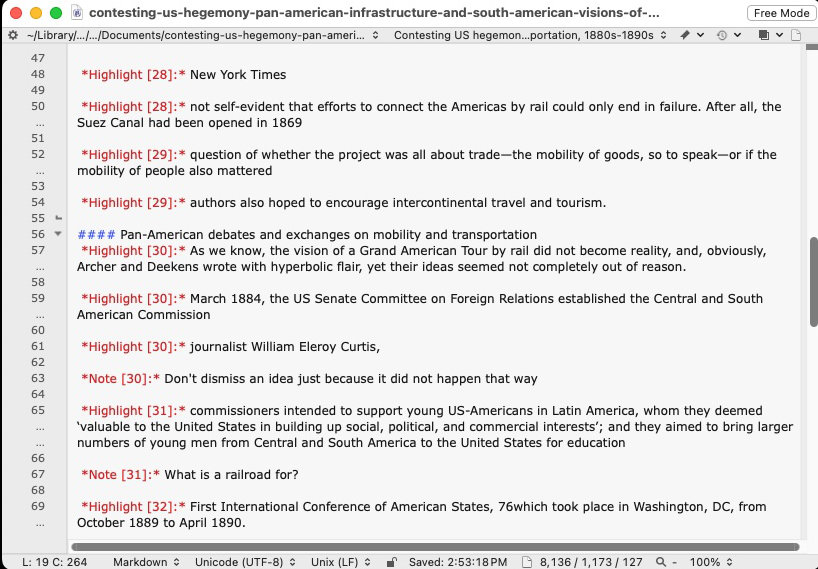
This file is more or less human-readable, but I find the repeated “Highlight” and the asterisks in red to be distracting, so I prefer to clean it up.
Step 4. Convert Markdown to tab-delimited text
With the encouragement of a colleague at the Roy Rosenzweig Center for History and New Media, in 2023 I learned enough Python to write a script: PDF Expert Markdown format to tab-delimited text . I’m sure it’s quite inelegant and inefficient, but it’s the best PDF Expert Markdown format to tab-delimited text script that I have ever written. Basically, you copy the Markdown text to the clipboard, run the script, and then paste into whatever program you like.
In some cases, the page numbers will be off, e.g., if you are marking up an article that starts on page 37 of a journal, but PDF Expert thinks that’s page 1. In such cases, pasting the tab-delimited text into a spreadsheet program will allow you to insert a column in which you can, say, add 36 to every page number, thus correcting the error. In this case, PDF Expert somehow understood that the Peters article started on page 21, so all the page numbers are fine. Come to think of it, I could probably rewrite the Python script to offer the user the chance to enter the first page number, but I don’t know if I’ll get around to that.
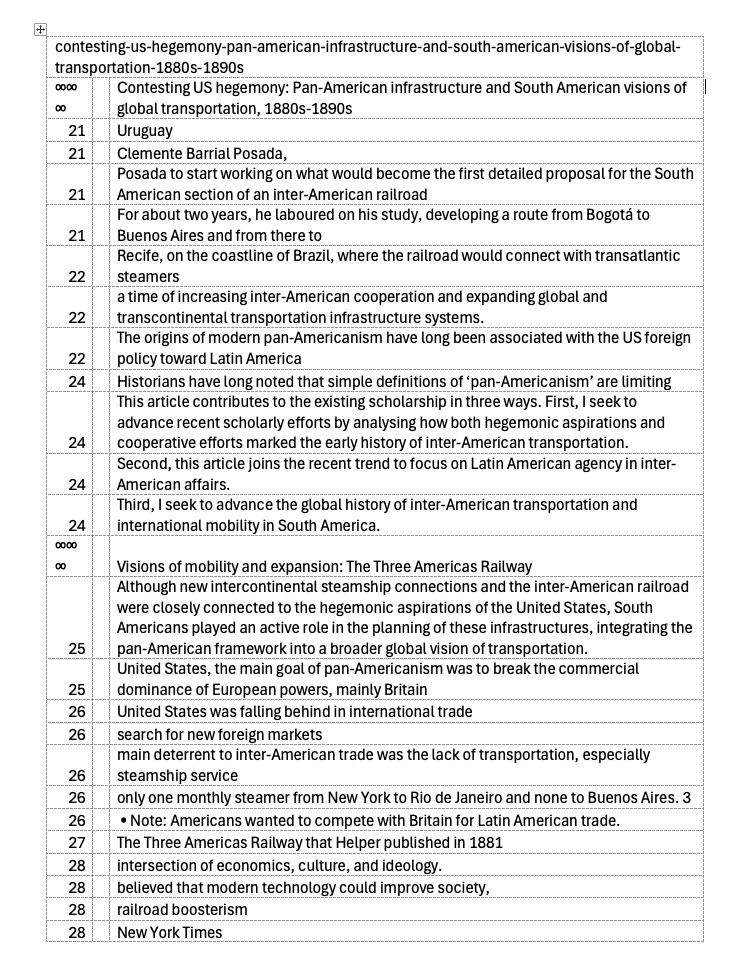
Once you have the material in this format, you can paste into Scrivener, Word, or whatever software you like to use for your notes.
Enjoy!
